A chart that feels like yours.
Arrange your workspace, choose your bar types, add custom indicators, and keep the tools you reach for close at hand.
 FOXTRADERPRO
A trading platform that thinks like you do.
Build your charts. Test your ideas. Make it yours.
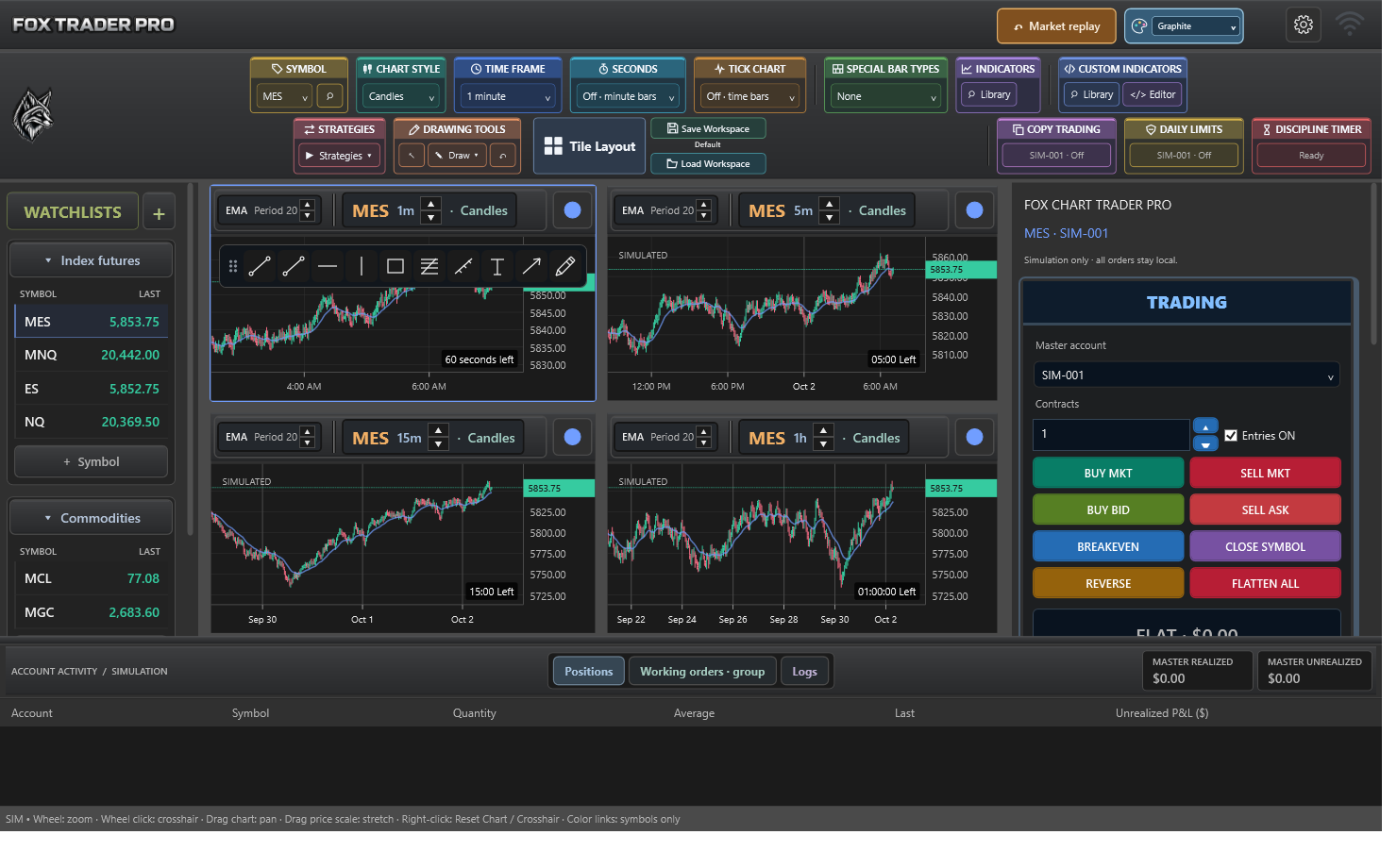 Explore the actual platform · 22 features
From your first chart to your next strategy.
The tools connect, so your thinking can flow.
Arrange your workspace, choose your bar types, add custom indicators, and keep the tools you reach for close at hand.
Work through indicators, strategies, and custom bar types in a conversation. Review the code, compile it, and test it.
Move through a session at your pace. Revisit a moment, test a different approach, and follow the results.
Choose indicators and their outputs. Combine conditions, assign symbols and timeframes, and bring your alerts to the chart.
Take a closer look at the tools.
Select any screenshot to explore it full size.
Actual platform screenshots from development builds. Trading and test results shown are simulated; some controls reflect earlier builds.
22 features to explore
Keep multiple charts, watchlists, and chart trading controls in view. Distinct toolbar colors help you find the tools you use most.
FoxPipChart puts an inset chart inside your main workspace. Compact dotted trade lines show position levels without covering the smaller chart.
A floating favorites strip puts frequently used drawing tools over the chart. Reposition it to suit your layout and keep the active strategy controls visible.
The Execution Markers setting lets you keep the chart clean or show the details you need. No Markers is the default.
Work with indicators, strategies, and bar types in the same editor. Document tabs use different colors to make each project type easier to recognize.
Build from a time, tick, volume, brick, range, or line-break template. Use the empty template when your idea needs its own starting point.
Run a custom bar type against a repeatable simulated sample before using it on a chart. Compare the current and previous runs as you refine the calculation.
Ask Fox helps you discuss and develop indicators, strategies, and bar types. Send test results back into the conversation, review suggested changes, and test again.
Market replay opens in its own distinct workspace. Its movable green control strip lets you pause, step forward, change speed, and seek through the session.
Open the replay results panel beneath the chart to inspect the report. Keep it tucked away when you want more room for price action.
The results curve begins at zero and advances as trades close. Green shows cumulative results above zero; red shows results below it.
Quick test runs a compiled strategy without opening market replay. Choose the available symbol, timeframe, and execution assumptions before starting.
The quick-test result combines trade details and a compact graph. Save the report or graph before closing when you want to keep the result.
Add indicators, select the outputs you want, and build the alert conditions. Every condition in a scan must be true on the same completed bar.
Select an indicator and check the buffers you want to use. Only the selected outputs become available in the condition menus.
Save the scan independently, then assign it to symbols and timeframes. Reuse the rule across the combinations that matter to you.
An alert identifies the scan, symbol, interval, and matching condition. Dismiss it with OK or use Go To Chart to inspect the setup.
Choose the platform theme and main-interface scale in General settings. Find a combination that suits your screen and working environment.
Choose defaults for new charts, the visible-bar count, and the display time zone. Changing the visible-bar setting also updates the selected chart.
Enable scanner popups and sounds independently. Choose the sound, adjust the volume, and test it before putting the scanner to work.
Choose your last workspace, a default layout, or a named saved workspace for the next launch. Keep your preferred starting point ready.
The in-platform Ask Fox credit purchase interface is ready to preview. It offers preset and custom amounts; checkout will activate after accounts and payments are connected.
Good ideas deserve a place to be tested.
Take yours from a conversation to a chart.
Write in the editor or collaborate with Ask Fox. Create indicators, strategies, and bar types.
Compile, preview, and quick test. Use market replay when you want to watch the session unfold.
Explore the results graph and detailed report. Save a copy, refine your idea, and run it again.
No feature ladder to climb.
Choose how you pay, not what you unlock.
Billed monthly. $25 per month.
All platform features included during the trial.Ask Fox credits are purchased separately inside the platform. Broker and exchange charges, where applicable, are separate.
The planned trial includes every platform feature for 14 days. AI usage is separate. Trial registration will open when customer accounts are ready.
Yes. Both plans include all platform features. The annual plan is $239.88 paid upfront, equivalent to $19.99 per month, saving $60.12 compared with twelve monthly payments.
Ask Fox credits will be available to purchase inside the platform. They cover AI usage separately from your subscription. Credit checkout is currently a preview and does not accept payments.
Live broker connectivity is still in development. The current platform supports simulation and replay. Supported brokers and account requirements will be announced after integrations are approved and tested.
FoxTraderPro is a Windows desktop application. Final supported Windows versions, installation requirements, and a customer download will be provided at launch.